

The Nuitee Connect AI Chatbot is a ready-to-embed chat widget that gives your users a natural language interface for finding and booking hotels.
How It Works
Users open the chat widget and describe what they're looking for in plain language — destination, dates, number of guests. The AI searches for matching hotels, fetches live rates, and presents results directly in the chat. Users can expand hotel cards, compare rates, and proceed to book without leaving the widget.
The booking flow is fully integrated with Stripe via the Nuitee Connect Payment SDK — card details are captured in a sandboxed iframe and never touch your servers, so it's PCI compliant. Powered by Gemini and backed by Nuitee Connect's 3M+ property inventory, the widget handles the full journey from search to confirmed booking — without you writing any AI or booking logic.
Embedding the Widget
The embed snippet is available directly in your agency dashboard under Whitelabel → Chatbot. Copy the snippet and paste it into the <head> or before the closing </body> tag of any page where you want the chatbot to appear.
<script src="https://components.liteapi.travel/chatbot/v1.js?liteApiKey=YOUR_API_KEY" async></script>Your API key is automatically included in the snippet shown in the dashboard. Use the sandbox snippet during testing and switch to the production snippet when going live.
The snippet can also be deployed via Google Tag Manager — add it as a Custom HTML tag and set it to fire on the pages where you want the chatbot to appear.
Branding & Customisation
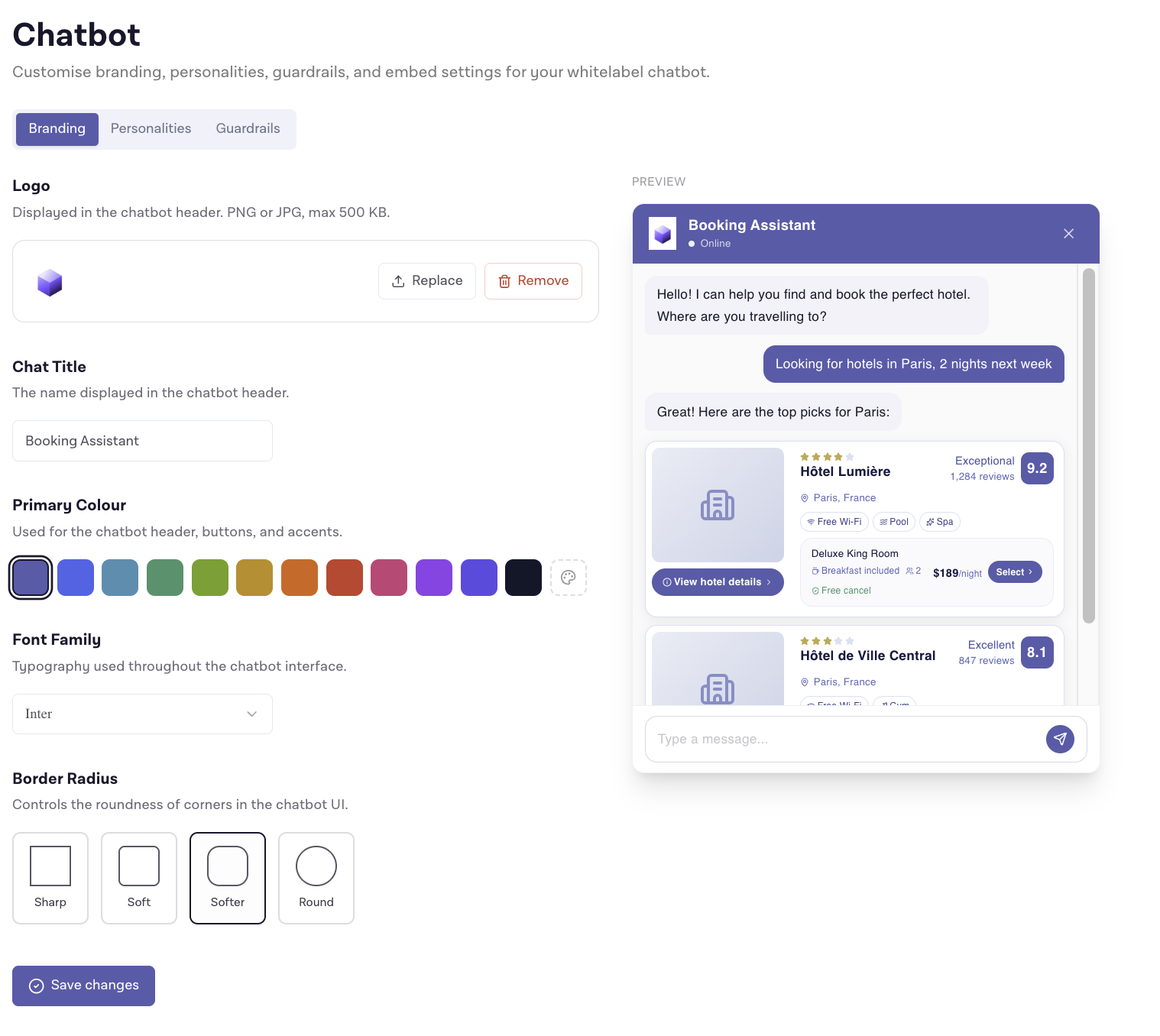
All branding is configured through the Whitelabel → Chatbot page in the agency dashboard. Changes are reflected in the live preview before you save.
Logo
Upload your brand logo to display in the chatbot header. Accepted formats: PNG or JPG, max 500 KB. The logo is hosted by Nuitee Connect and served via CDN.
Widget Title
The title text shown in the chatbot header. Defaults to Booking Assistant.
Primary Colour
The accent colour used for the chat header, user message bubbles, buttons, and interactive elements. Choose from a set of presets or enter a custom hex value.
Font
The typeface used throughout the widget. Available options:
- Inter (default)
- DM Sans
- Plus Jakarta Sans
- Nunito Sans
- Lato
- Open Sans
- Poppins
- Roboto
- Source Sans 3
- Manrope
All fonts are loaded from Google Fonts at runtime.
Corner Radius
Controls the roundness of cards, buttons, and the widget frame itself:
| Option | Description |
|---|---|
| Sharp | Square corners (0px) |
| Soft | Slightly rounded (6px) |
| Softer | Rounded (default) (12px) |
| Round | Pill-style rounding (20px) |
Personalities
Personalities let you define distinct AI personas for different member tiers, card products, or travel segments — each with its own tone, hotel preferences, and spending profile.
Go to Whitelabel → Chatbot → Personalities and click New personality to create one.
What you can configure per personality
Identity
| Field | Description |
|---|---|
| Name | Required. Shown to admins and, if the picker is enabled, to end users. |
| Description | Internal note for admins only — not shown in the widget. |
| Default personality | The persona used when no other is selected for a user. Only one personality can be the default. |
AI behaviour
| Field | Description |
|---|---|
| System prompt | Free-text instructions that shape the assistant's tone and priorities for this persona — for example, luxury focus, cardholder credits, or preferred destination regions. |
Member profile
| Field | Description |
|---|---|
| Member status name | Label for this tier, e.g. "Platinum cardholders". |
| Status perks & benefits | Freeform list of perks the assistant can reference when making recommendations. |
| Monthly card spend (USD) | Used to calibrate spending-level recommendations. |
Accommodation preferences
| Field | Description |
|---|---|
| Star rating (min / max) | Filters hotel recommendations to a star range (1–5). |
| Preferred hotel chains | Chains the assistant should favour in recommendations. |
| Excluded hotel chains | Chains the assistant should not recommend. |
| Nightly budget (min / max) | Budget range used to rank and filter results. |
| Currency | Budget currency — USD, EUR, GBP, CAD, AUD, CHF, or JPY. |
Travel preferences
| Field | Description |
|---|---|
| Travel purpose | Leisure, Business, or Both. |
| Preferred regions / destinations | Destinations the assistant should prioritise. |
| Room type preference | Any, Standard, Superior, or Suite. |
| Breakfast preference | Any, breakfast included preferred, or breakfast not required. |
Personality picker
When you have two or more personalities, a Let users choose a personality toggle appears on the Personalities tab. When enabled, a selector is shown in the chatbot header so users can switch personas themselves. The personality marked as default is pre-selected.
If this toggle is off, the default personality is always used and users see no selector.
Guardrails
Guardrails are policy rules that constrain what the assistant will discuss. They are injected into the model's system prompt and apply across all conversations on your account.
Go to Whitelabel → Chatbot → Guardrails to configure them.
Sensitive topics
| Toggle | Effect |
|---|---|
| Block political topics | The assistant avoids partisan or electoral discussion and steers the conversation back to travel and booking. |
| Block religious topics | The assistant avoids theological debate. Cultural travel etiquette can still be covered using the additional guardrails field below. |
Safety and liability
| Toggle | Effect |
|---|---|
| Avoid medical advice | The assistant does not provide diagnoses, prescriptions, or treatment recommendations, and suggests consulting a professional. |
| Avoid legal advice | The assistant does not offer binding legal interpretation and limits itself to general travel information. |
| Block adult or sexual content | The assistant keeps all responses brand-safe and suitable for a broad audience. |
Brand and responses
| Toggle | Effect |
|---|---|
| Do not discuss or promote competitor products | The assistant focuses on your programme, your partners, and Nuitee Connect booking flows. |
| Do not invent prices, availability, or policies | The assistant only cites information it can verify from live data or APIs, and says so when it cannot. |
Additional guardrails
A free-text field for rules not covered by the toggles above — banned phrases, specific tone requirements, regional restrictions, or any organisation-specific policy. This text is appended to the model's instructions.
Booking Flow
- Search — User describes their trip. The AI finds matching hotels and fetches live rates.
- Compare — Hotel cards with star ratings, guest scores, amenities, and nightly rates appear in the chat. Users can expand any card for photos, room types, and full details.
- Select — User picks a rate and clicks Book.
- Guest details — A form collects the lead guest's name, email, and phone number.
- Payment — User enters their payment details to complete the booking.
- Confirmation — The booking is confirmed and the widget displays the booking reference.
Sandbox vs Production
The dashboard toggle between sandbox and production controls which API key is embedded in the snippet.
| Mode | ehaviour |
|---|---|
| Sandbox | Uses your sandbox key. No real charges — use Stripe test cards. |
| Production | Uses your production key. Live inventory, live rates, real payments. |
Always test with sandbox mode before embedding the production snippet on a live site.
Enabling the Chatbot on a Whitelabel Site
If you have a whitelabel site powered by Nuitee Connect, you can surface the chatbot there with two steps: one in your Nuitee Connect dashboard and one in the Whitelabel settings.
Step 1 — Enable from the Nuitee Connect Dashboard
In your Nuitee Connect Dashboard, go to Whitelabel → Chatbot → Settings and turn on the Show on my whitelabel toggle.
This makes the chatbot available to all whitelabel sites linked to your account. It does not automatically activate the chatbot on any individual site — that is controlled per site in the Whitelabel settings (step 2).
Step 2 — Activate per site in the Whitelabel settings
In the Whitelabel settings, go to Settings → Configuration and scroll to the AI Chatbot section.
Note: The controls in this section remain disabled until the agency-level toggle in step 1 is enabled. If you see a message saying the chatbot has not been enabled in the Nuitee Connect dashboard, complete step 1 first.
| Setting | Description |
|---|---|
| Enable AI chatbot | Shows the AI booking assistant on hotel pages of this whitelabel site. |
| Inherit whitelabel appearance | Uses your site's colours, font, border radius, and logo in the chatbot widget. |
Toggle Enable AI chatbot to turn the assistant on for the site. Once enabled, you can optionally turn on Inherit whitelabel appearance to automatically apply your whitelabel branding to the chatbot — no additional branding configuration needed.