

External Checkout — Dashboard Setup Guide
Partner teams setting up External Checkout from the Nuitée partner dashboard
What Is External Checkout?
External Checkout lets you replace Nuitée's built-in payment step with your own checkout experience. When a guest is ready to pay, Nuitée hands them off to a URL you control. You collect payment, apply any discounts or loyalty points, then signal Nuitée that the booking should be confirmed.
Nuitée handles everything else: hotel search, room selection, booking confirmation with the supplier, and the confirmation email to the guest.
There are two ways to integrate, called modes:
| Mode | What happens after payment |
|---|---|
| Redirect-back | Guest returns to Nuitée. Nuitée shows a loading screen, then the confirmation page with the booking PDF. |
| Headless | Guests stay on your site throughout. You display your loader and confirmation page and decide whether Nuitée suppresses or sends the confirmation email. |
Decide which mode fits your product before starting setup. You can change it later, but it affects what URLs you need to configure.
Before You Start
Nuitée ops must create a whitelabel project for your account and configure your Partner slug before you can access the External Checkout settings. Your Partner slug is a short identifier (e.g. agency-site) that appears in your webhook URL.
Once Nuitée has done that, log in to the partner dashboard and navigate to:
Settings → Payment
Section 1 — Connection Details
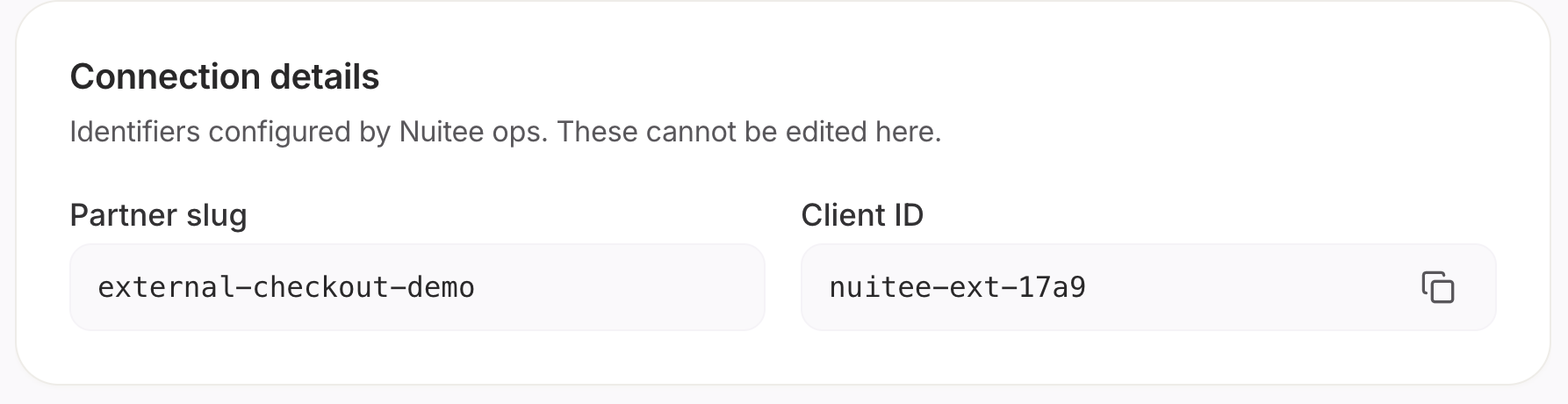
This section shows two identifiers that Nuitée configures for you.
| Field | Description |
|---|---|
| Partner slug | Short identifier for your organisation. Used in your webhook URL: https://{domain}/v1/webhooks/external-checkout/{partnerSlug}. Set by Nuitée ops — not editable here. |
| Client ID | Identifies your account in signed payloads Nuitée sends to your checkout page. Appears after you generate credentials. |
You will use these values when implementing the integration. The Client ID has a copy button next to it.
What is {domain}?
{domain}?In the URL patterns throughout this guide (for example, https://{domain}/v1/webhooks/external-checkout/{partnerSlug}), {domain} refers to the Nuitée White Label (WL) domain where the partner is configuring the checkout integration. This is the base domain assigned to your White Label.
Section 2 — Credentials
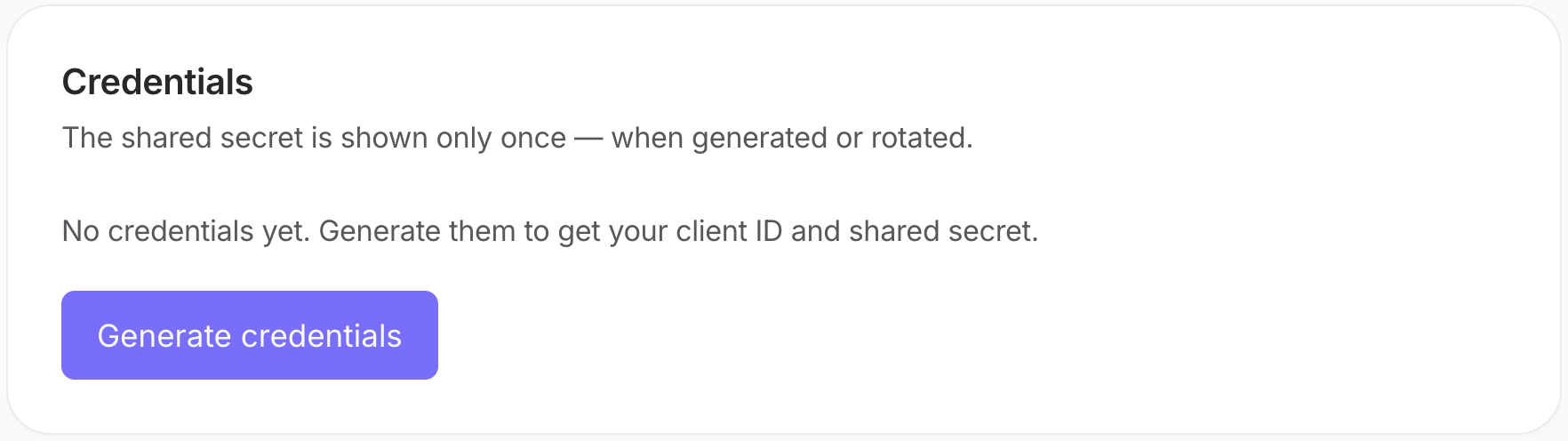
Your integration uses a shared secret to sign and verify messages between your servers and Nuitée. This ensures that a handoff from Nuitée is genuine, and that your payment callback comes from a trusted source.
Generating credentials for the first time
If no credentials exist yet, the section shows a Generate credentials button.
- Click Generate credentials.
- A one-time credentials dialog appears.
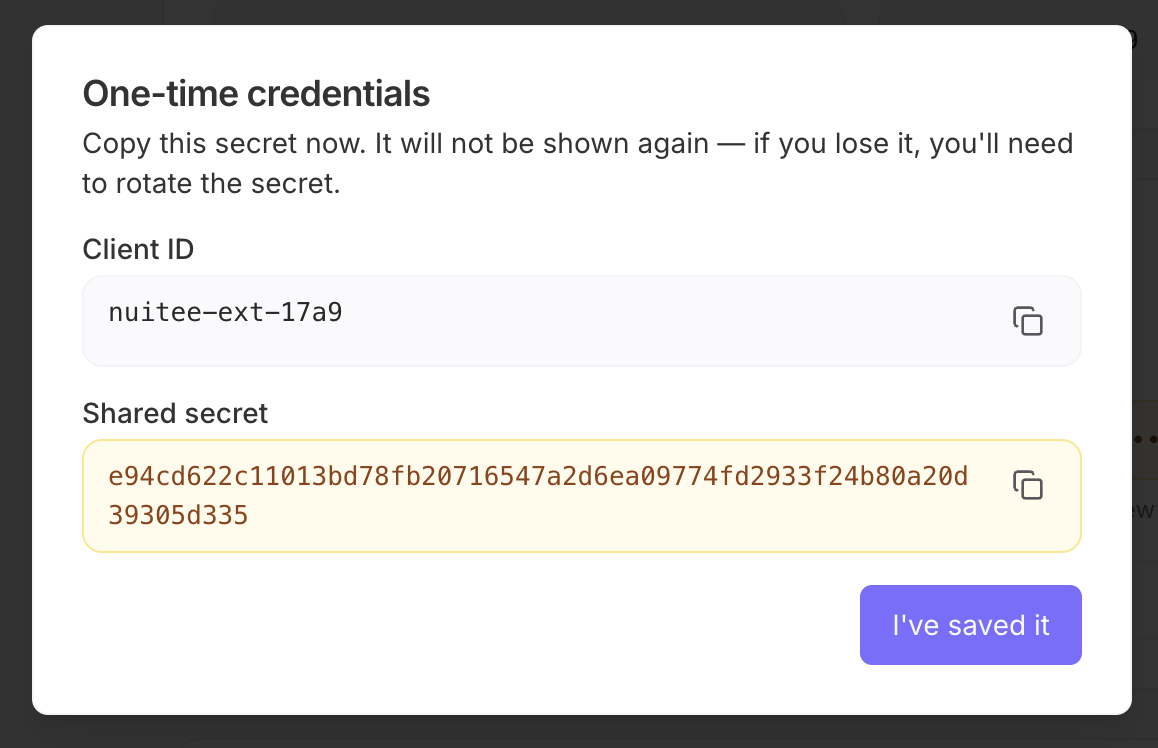
The dialog shows:
| Field | What to do |
|---|---|
| Client ID | Copy it. You will use it in your integration code to identify your account. |
| Shared secret | Copy and store it securely now. This is the only time it is shown. Store it in an environment variable or secrets manager — never in source code or logs. |
- Click I've saved it once you have copied both values.
Important: If you close the dialog without saving the secret, you will need to use Rotate secret to generate a new one. There is no way to recover a lost secret.
After credentials are generated
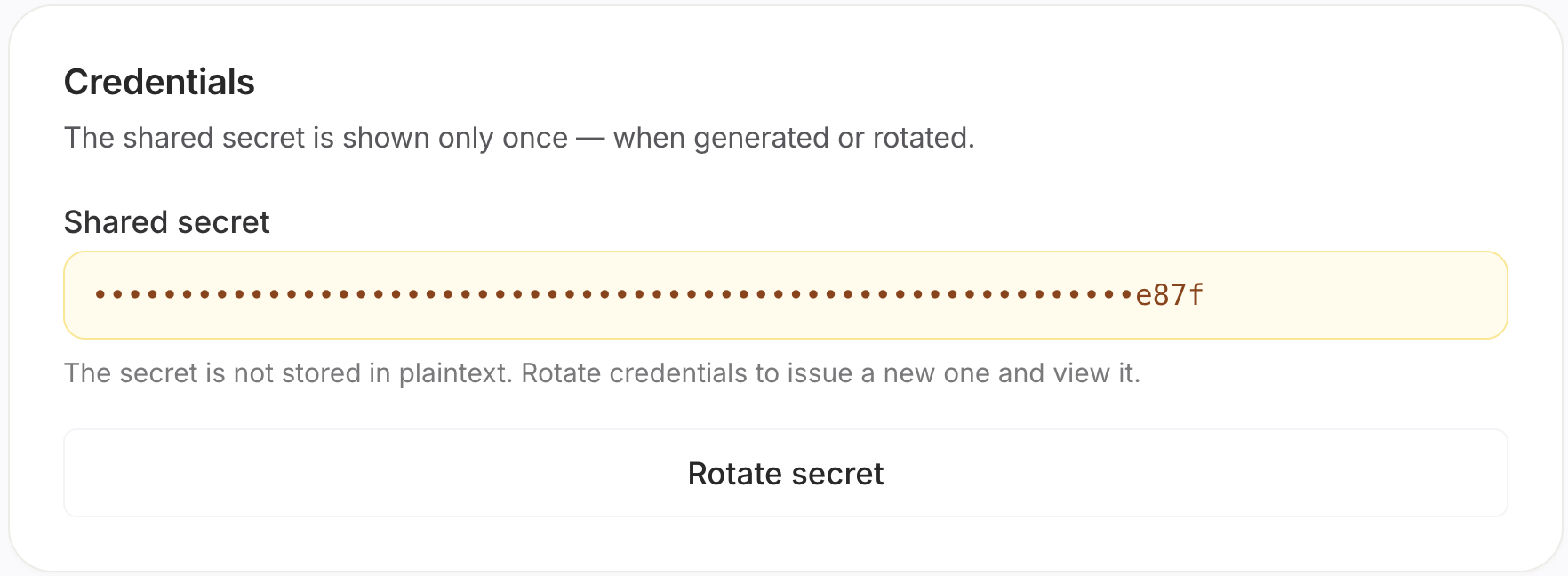
Once credentials exist, the section shows:
- The shared secret masked as dots, with the last four characters visible as a hint.
- A Rotate secret button.
The secret is not stored in plaintext — the masking is permanent, not cosmetic. If you need to view the actual value, rotate it to receive a new one.
Rotating the secret
Use Rotate secret when:
- You need to view a new secret value (e.g. you lost the original)
- You suspect the secret has been compromised
- You are doing a pre-launch credential rotation
Clicking Rotate secret immediately invalidates the current secret and shows the new one in the same one-time dialog. Update your integration before rotating in production — any requests signed with the old secret will be rejected the moment you save.
Section 3 — Checkout Behavior
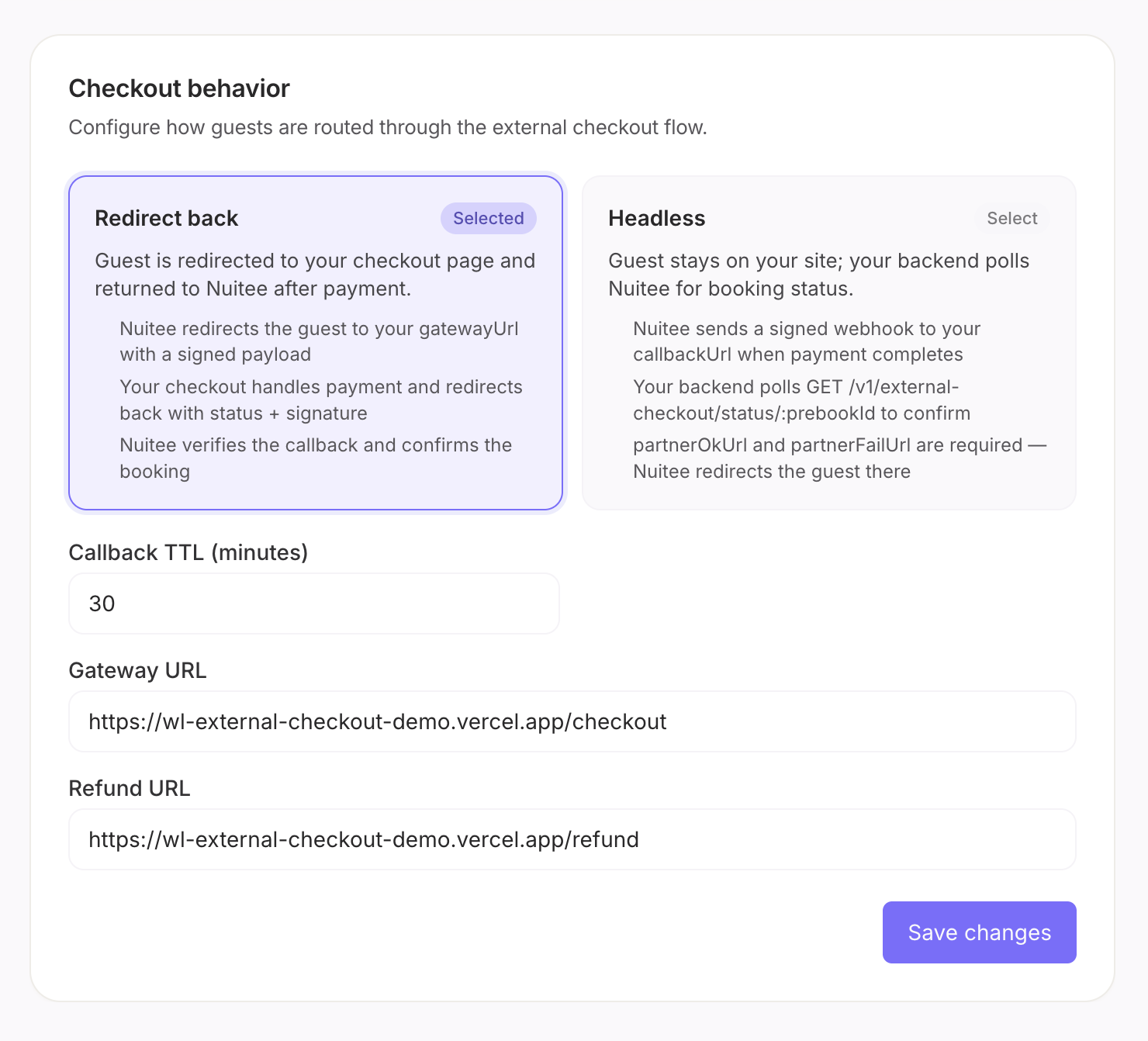
This section controls how guests flow through the checkout. Changes here are saved separately with the Save changes button — they do not require regenerating credentials.
Integration mode
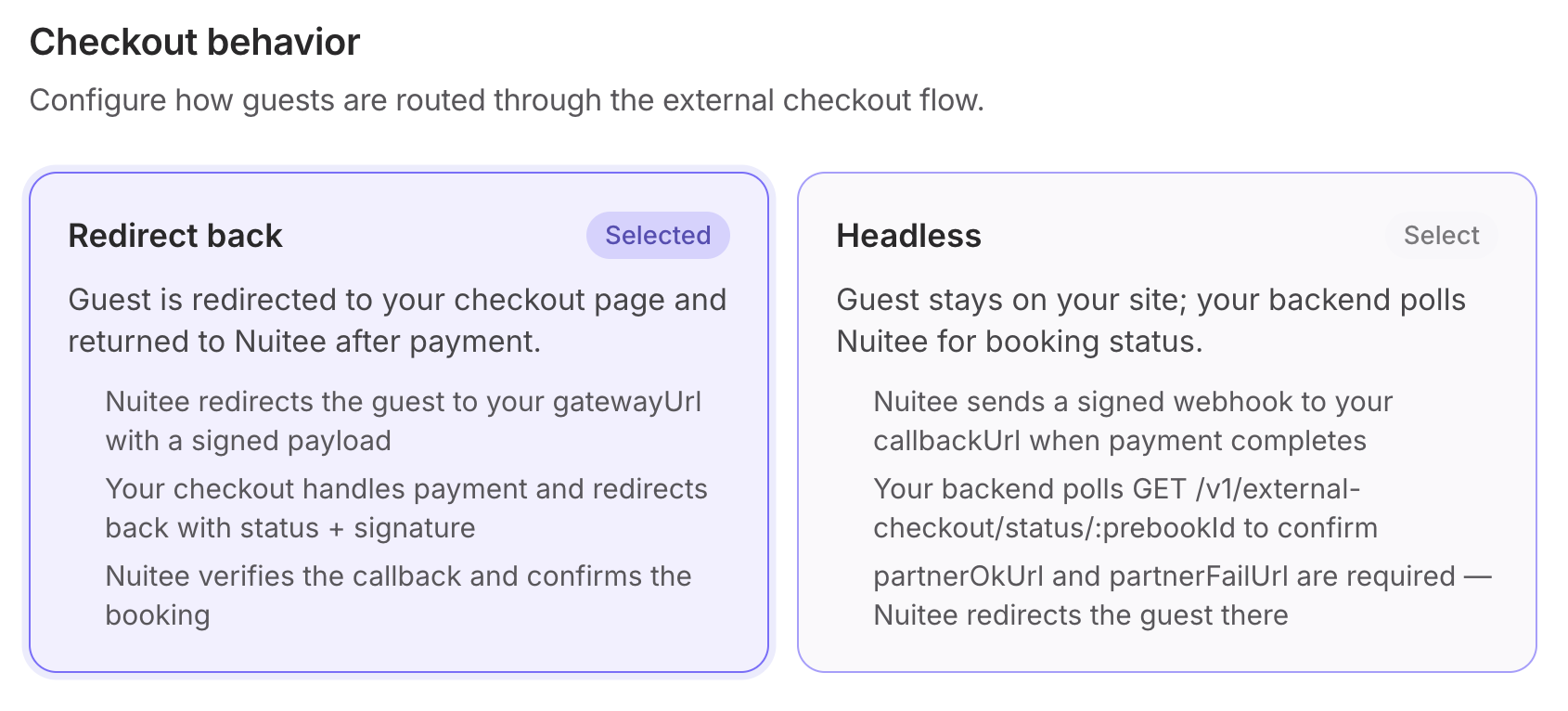
Select the mode that matches your product:
Redirect-back
Guest → your checkout page → payment → Nuitée loading screen → Nuitée confirmation page + PDF- Nuitée redirects the guest to your
gatewayUrlwith a signed payload - Your checkout handles payment and redirects back to Nuitée with status + signature
- Nuitée verifies the callback, confirms the booking, shows the confirmation page, and sends the guest a confirmation email
Best for: partners who want minimal integration effort. You only build the payment page.
Headless
Guest → your checkout page → payment → your loading/confirmation page
 ↕ (optional: poll Nuitée for status)
Nuitée: receives callback → confirms booking → sends confirmation email- Your checkout handles payment and keeps the guest on your site
- You optionally poll Nuitée for booking status to show your own confirmation screen
- Nuitée sends the confirmation email to the guest automatically
Best for: partners who want end-to-end control over the post-payment experience.
When Headless is selected, two additional URL fields appear: Partner OK URL and Partner fail URL (see below).
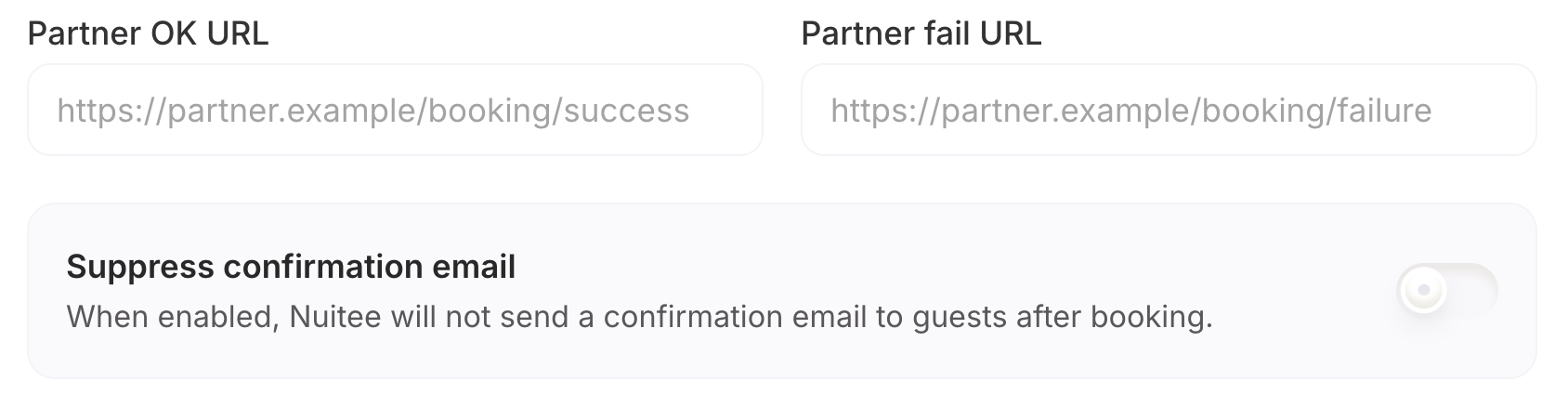
URL fields
| Field | Required | Description |
|---|---|---|
| Gateway URL | Always | Your checkout page URL. Nuitée redirects the guest here with a signed payload when they click Pay. Example: https://checkout.partner.example/start |
| Refund URL | Optional | Your server endpoint for refund requests. Nuitée calls this when a refund is initiated on a booking confirmed via External Checkout. |
| Partner OK URL | Headless only | Your success page. Nuitée redirects the guest here after the booking is confirmed. Example: https://partner.example/booking/success |
| Partner fail URL | Headless only | Your failure page. Nuitée redirects the guest here if the booking fails or expires. Example: https://partner.example/booking/failure |
All URLs must use HTTPS.
Callback TTL (minutes)
Default: 30 minutes.
This is the window Nuitée waits for your server to send a payment confirmation after the guest lands on your checkout page. If the window expires with no confirmation received, the booking is marked as expired and the guest receives an expiry notification.
You can lower this if your checkout enforces a shorter session timeout. Do not set it higher than 30 unless discussed with Nuitée.
Suppress confirmation email (Headless mode only)

When enabled, Nuitée does not send the guest a booking confirmation email. Use this only if you are sending your own confirmation email with the booking details.
By default this is off — Nuitée sends the confirmation email automatically, which most partners prefer.
Saving behavior settings
Click Save changes at the bottom right of the Checkout behavior section. A success toast confirms the save.
URL fields and the TTL are saved here. Credentials (Client ID and shared secret) are managed separately in Section 2.
Section 4 — Testing and Go-Live
Sandbox mode
When Nuitée enables sandbox mode on your project:
- Hotel search returns real data
- Prebook and booking calls use Nuitee Connect sandbox — no real reservations are made, no charges occur
- Your HMAC signing, callback, and status polling work exactly as in production
- Same URL, same credentials
Contact Nuitée to enable or disable sandbox mode.
Pre-launch checklist
- ☐ Partner slug and Client ID visible in Connection details
- ☐ Credentials generated — shared secret stored securely in your environment
- ☐ Gateway URL saved and reachable from the internet (HTTPS)
- ☐ If headless: Partner OK URL and Partner fail URL saved
- ☐ End-to-end test completed in sandbox
- ☐ Rotate the shared secret via the dashboard before go-live (best practice)
- ☐ Confirm with Nuitée that sandbox mode is disabled
Next Steps — Developer Integration
The dashboard setup assigns your credentials and URLs. The actual integration — verifying the signed handoff, building the checkout page, sending the server-to-server callback — is covered in the developer guide: External Checkout — Endpoint Reference.
That guide covers:
- Receiving and verifying the signed handoff payload
- Fetching booking details from Nuitee Connect to display on your checkout page
- Sending the confirmation callback with HMAC signing (Node.js and Python examples)
- Post-payment flow for both modes
- Status polling endpoint (headless)
- Confirmation PDF proxy (headless, optional)
- Testing checklist and signature test vector
Quick Reference
| Dashboard field | Used in integration as |
|---|---|
| Partner slug | Header X-Partner-Slug on status/PDF requests; path segment in callback URL |
| Client ID | clientId field in the signed handoff payload you receive from Nuitée |
| Shared secret | HMAC key — verify inbound handoffs, sign outbound callbacks |
| Gateway URL | Where Nuitée redirects the guest with the signed payload |
| Callback URL | Built by Nuitée automatically: https://{domain}/v1/webhooks/external-checkout/{partnerSlug} |
FAQ
Can I change the integration mode after go-live? Yes, but you must update your implementation first. Switching from redirect-back to headless requires adding the Partner OK/fail URLs in the dashboard and building the headless post-payment flow before saving the change.
What if I lose the shared secret? Use Rotate secret to generate a new one. Update your integration with the new secret immediately — the old one is invalidated at the moment of rotation.
Do I need a separate shared secret for staging and production? Best practice: yes. Ask Nuitée to set up a separate staging project with its own credentials.
Can I suppress the Nuitée confirmation email in redirect-back mode? No. The suppress option is only available in headless mode, where you are expected to own the full post-payment experience including communication with the guest.
How do I know when Nuitée has disabled sandbox mode? Sandbox mode displays an orange bar at the top, indicating the project is in sandbox mode.
For setup support or to request a sandbox project, contact the Nuitée team.
Updated 4 months ago