

Whitelabel - Loyalty Program
Wire your existing loyalty and rewards program into the WhiteLabel hotel booking flow. Guests can earn points, see rewards, and track benefits during search and checkout.
Key Features
| Feature | Description |
|---|---|
| Points Display | Show potential points on hotel cards and checkout |
| Membership Collection | Capture customer loyalty IDs during booking |
| Flexible Earn Rules | Configure multipliers, static points, or combined rules |
| Tier Support | Define multiple tiers with different earn rates |
| Booking Records | Track loyalty data for every booking |
| Export & Reporting | Export bookings with loyalty data from PBO |
How It Works
┌─────────────────────────────────────────────────────────────────────┐
│                        LOYALTY FLOW                                  │
├─────────────────────────────────────────────────────────────────────┤
│                                                                      │
│  1. SETUP                    2. DISPLAY                             │
│  ┌──────────────────┐        ┌──────────────────┐                   │
│  │ Partner Admin    │        │ Hotel Search     │                   │
│  │ configures       │───────▶│ shows points     │                   │
│  │ loyalty program  │        │ on each hotel    │                   │
│  └──────────────────┘        └────────┬─────────┘                   │
│                                       │                              │
│  3. CHECKOUT                          ▼                              │
│  ┌──────────────────┐        ┌──────────────────┐                   │
│  │ Customer enters  │        │ Checkout shows   │                   │
│  │ membership ID    │◀───────│ total points     │                   │
│  │ (optional)       │        │ to earn          │                   │
│  └────────┬─────────┘        └──────────────────┘                   │
│           │                                                          │
│           ▼                                                          │
│  4. BOOKING                  5. EXPORT                              │
│  ┌──────────────────┐        ┌──────────────────┐                   │
│  │ Loyalty data     │        │ Partner exports  │                   │
│  │ stored with      │───────▶│ bookings with    │                   │
│  │ booking          │        │ membership data  │                   │
│  └──────────────────┘        └──────────────────┘                   │
│                                                                      │
└─────────────────────────────────────────────────────────────────────┘
Validation Methods
WhiteLabel supports four methods for connecting your loyalty program:
1. No Validation Required
Enable generic loyalty messaging throughout the booking funnel without verifying the customer's loyalty status.
| Pros | Cons |
|---|---|
| Simplest to implement | No customer identification |
| Zero integration needed | Cannot track individual members |
| Immediate activation | No membership data captured |
| Works for any program | Points display only (no earn tracking) |
Best for: Partners who want to display loyalty benefits and encourage sign-ups without collecting membership data at checkout.
2. Membership Number Validation
Customers manually enter their loyalty membership ID during checkout.
| Pros | Cons |
|---|---|
| Simple to implement | No real-time validation |
| No integration required | Customer must know their ID |
| Works with any loyalty system | Manual verification needed |
| Captures membership data |
Best for: Partners who want to collect membership IDs for post-booking processing without technical integration.
3. Checkout Debit/Credit Card 🔒 Available on Request
Customers verify their loyalty membership by paying with a registered card.
| Pros | Cons |
|---|---|
| Automatic identification | Requires card-based loyalty system |
| No manual entry needed | More complex integration |
| Higher accuracy | Limited to card-linked programs |
Best for: Partners with card-linked loyalty programs (airline cards, hotel cards, etc.)
📄 Documentation: Contact support to enable this feature.
4. Single Sign-On (SSO) 🔒 Available on Request
Customers authenticate via your loyalty provider's SSO system.
| Pros | Cons |
|---|---|
| Full integration | Requires SSO implementation |
| Real-time tier detection | Longer setup time |
| Automatic membership lookup | Technical resources needed |
| Loyalty in the booking UI |
Best for: Partners with existing SSO infrastructure who want the most integrated experience.
📄 Documentation: Contact support to enable this feature.
Program Configuration
Program Info
| Field | Required | Description |
|---|---|---|
| Program name | ✅ | Display name (e.g., "Rewards Plus") |
| Reward type | ✅ | Type of reward (e.g., "points", "miles") |
| Value | ✅ | Currency amount per reward unit |
| Reward | ✅ | Points earned per value unit |
| Minimum transaction | ✅ | Minimum booking amount to earn |
| Points accrual timeline | ✅ | When points are credited |
Points Calculation Formula:
Points = (Booking Amount ÷ Value) × Reward × Tier MultiplierExample:
- Value: USD 1, Reward: 10 points
- Booking: $200, Tier: Gold (2x multiplier)
- Points: ($200 ÷ 1) × 10 × 2 = 4,000 points
Appearance Settings
| Field | Required | Description |
|---|---|---|
| Label | ✅ | Badge text (use {points} placeholder) |
| Color | ✅ | Brand color (hex code) |
| Program logo | ✅ | Icon/logo image (42px height, max 1MB) |
Label Examples:
"Earn {points} points"→ "Earn 2,000 points""Get {points} miles"→ "Get 2,000 miles""{points} rewards on this stay"→ "2,000 rewards on this stay"
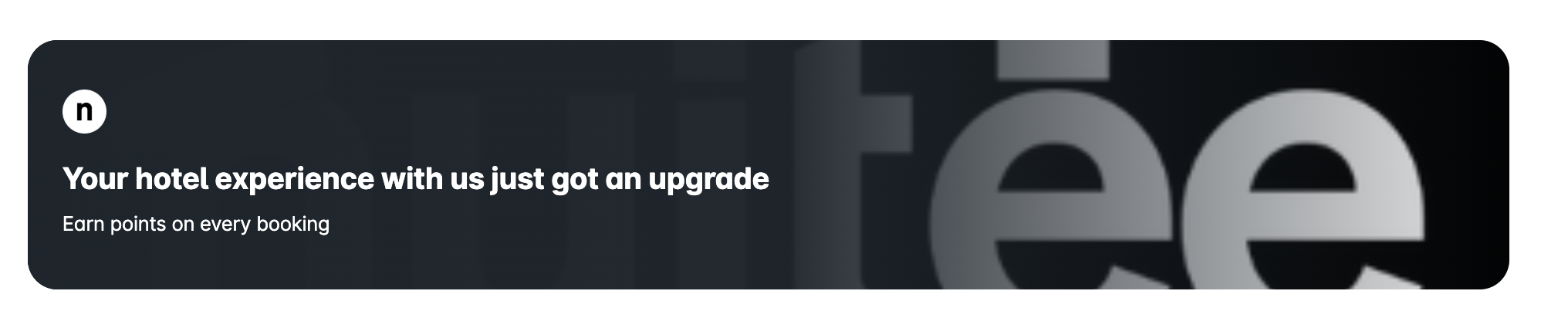
Homepage Banner (Optional)
Promote your loyalty program on the homepage:
| Field | Description |
|---|---|
| Title | Banner headline |
| Description | Subtext (max 120 chars) |
| Background image | Hero image (1920×600px, max 2MB) |
Quick Start Guide – Create a Loyalty Program
This quick start walks you through creating and testing a loyalty program using the Partner Back Office UI.
Step 1: Open Loyalty Programs
- Log in to the Partner Back Office
- From the left-side menu, click Loyalty Programs
You will see the Integrate a Loyalty Program setup screen.
Step 2: Select Validation Method
In the Program Connection section at the top:
- Find Validation options
- Select any valid validation options that make sense to your appraoch
- Continue to the next section
Step 3: Configure Program Info
In the Program Info section, fill in the required fields:
-
Program name
Example:My Rewards -
Reward type
Example:Points -
Value
Example:USD 1 -
Reward
Example:10 pts -
Minimum transaction value
Example:0(or your preferred minimum) -
Points accrual timeline
Select:After check-out
Result:
Customers earn 10 points for every USD 1 spent on eligible bookings.
Step 4 (Optional): Configure Tier System
If you want different earn rates for loyal customers:
-
Expand the Tier System section
-
Open First tier
-
Enter:
- Tier name (e.g. Silver)
- Earn rate multiplier (e.g. 1.5)
-
Upload a tier icon (optional)
-
Click + Add another tier if needed
If no tiers are configured, all customers earn the base rate.
Step 5: Configure Appearance
In the Appearance section:
-
Set Label to:
Earn {points} points -
Choose a Color that matches your brand
-
Upload your Program icon or logo
Use the Preview area to confirm how the loyalty badge appears:
- As a component
- On hotel cards
Step 6 (Optional): Add Homepage Banner
To promote your loyalty program on the homepage:
-
Enter a Title
Example:Points to earn -
Add a Description
Example:Earn rewards on every hotel booking -
Upload a Homepage banner image
-
Preview the banner in Desktop and Mobile views
Step 7: Create and Publish
- Review all sections
- Click Create program
Your loyalty program is now live.
Step 8: Test the Program
Before sharing with customers, run a test booking:
-
Search for any hotel
-
Confirm loyalty points appear on hotel cards
-
Open a hotel details page and verify points display
-
Proceed to checkout
-
Confirm:
- Points summary is visible
- Membership number input field is shown if membership validation has been selected
-
Complete the booking
-
Go to Bookings in PBO
-
Verify loyalty data appears in booking details and exports
What Customers See
Home page banner
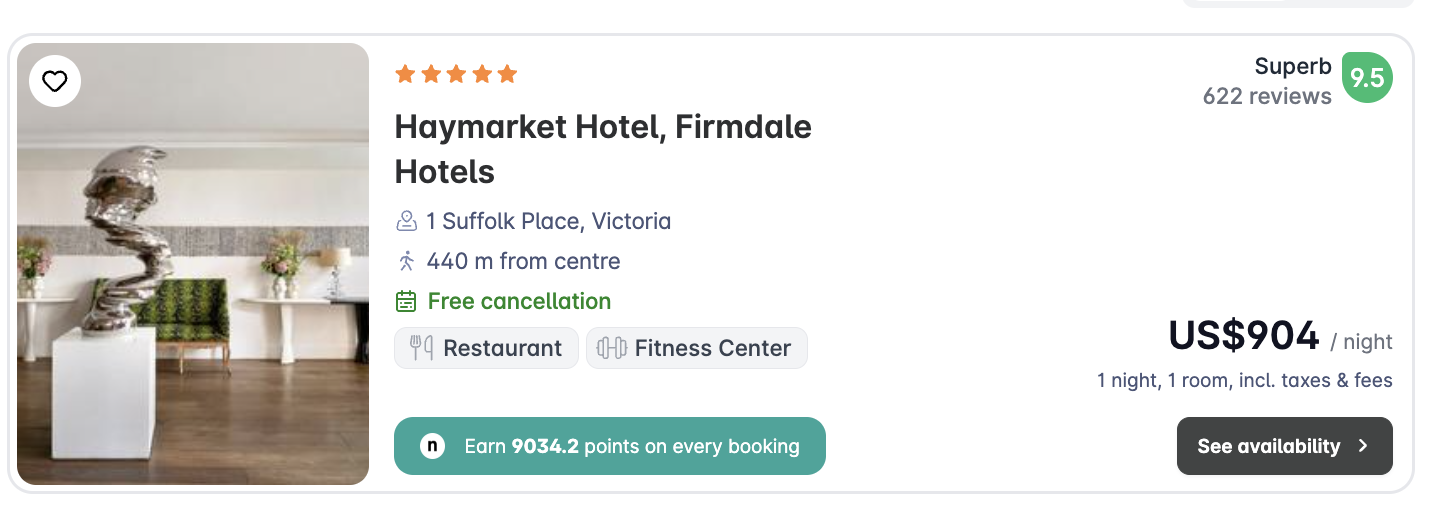
Hotel Search Results
Customers see loyalty points messaging on hotel cards:
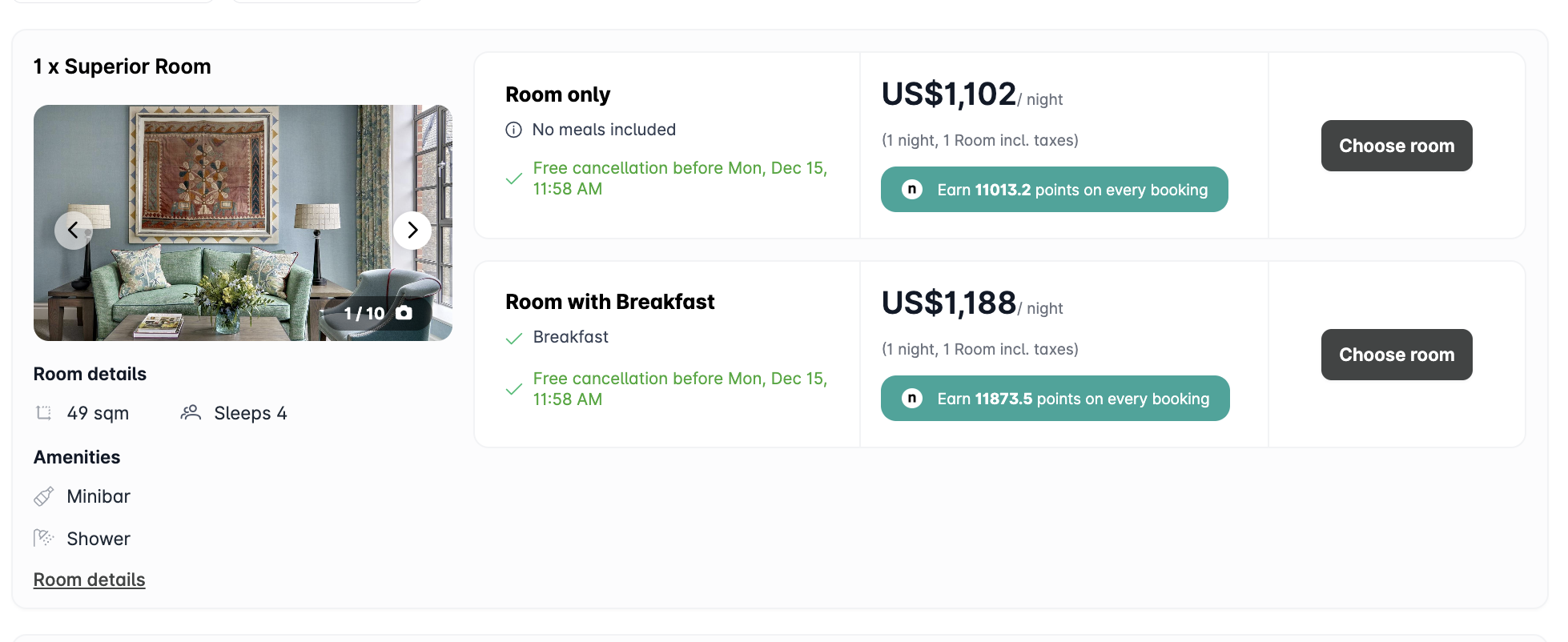
Hotel Details Page
Loyalty badge displayed near pricing:
Checkout Page
Points summary displayed (no input fields required):
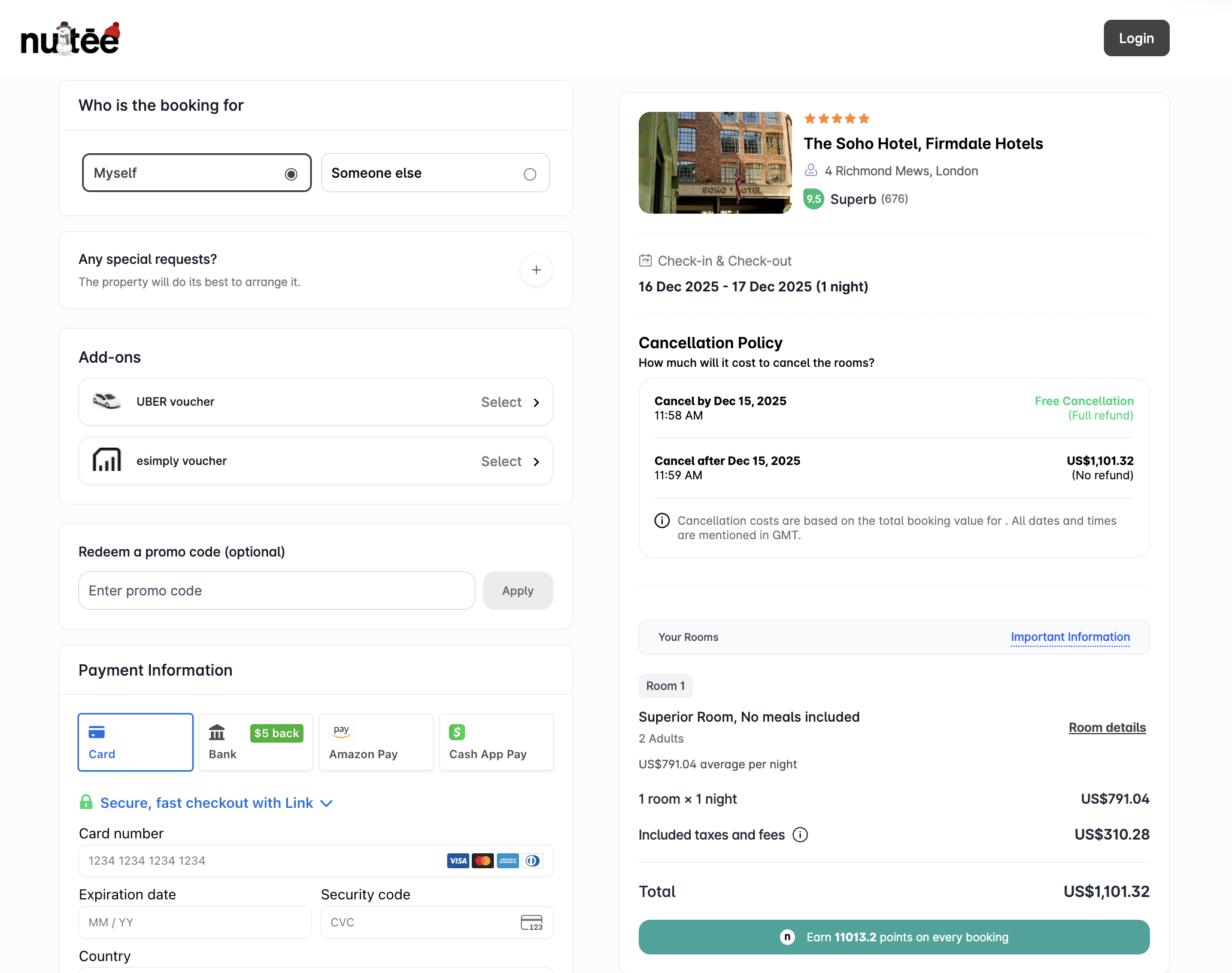
Note: No membership input field is shown. The messaging encourages customers to join your program.
Documentation Index
| Document | Description |
|---|---|
| Loyalty Overview | This document - general overview |
| No Validation Required | Generic loyalty messaging without verification |
| Membership Validation | Collect membership IDs at checkout |
| Checkout Card Validation | Coming soon (available on request) |
| SSO Integration | Coming soon (available on request) |
Updated 3 months ago